
Quest 3 Link Not Working?
How to Fix USB Connection Problems (2026)
Trying to connect your Meta Quest 3 to your gaming PC, only to find that Quest Link won't start? Maybe your computer doesn't recognize the headset, the connection keeps dropping, or you're getting a black screen instead of your game.
These problems can be frustrating, especially when everything worked fine before.
The good news is that many Quest Link connection issues can be fixed without buying new equipment. Sometimes the problem is as simple as using the wrong USB port. Other times, it comes down to a Windows setting, an outdated driver, or a cable that isn't working properly.
In this guide, we'll walk through the most common reasons why Meta Quest 3 Link stops working and show you how to troubleshoot them. Most of these steps also apply to the Quest 3S and Quest 2.

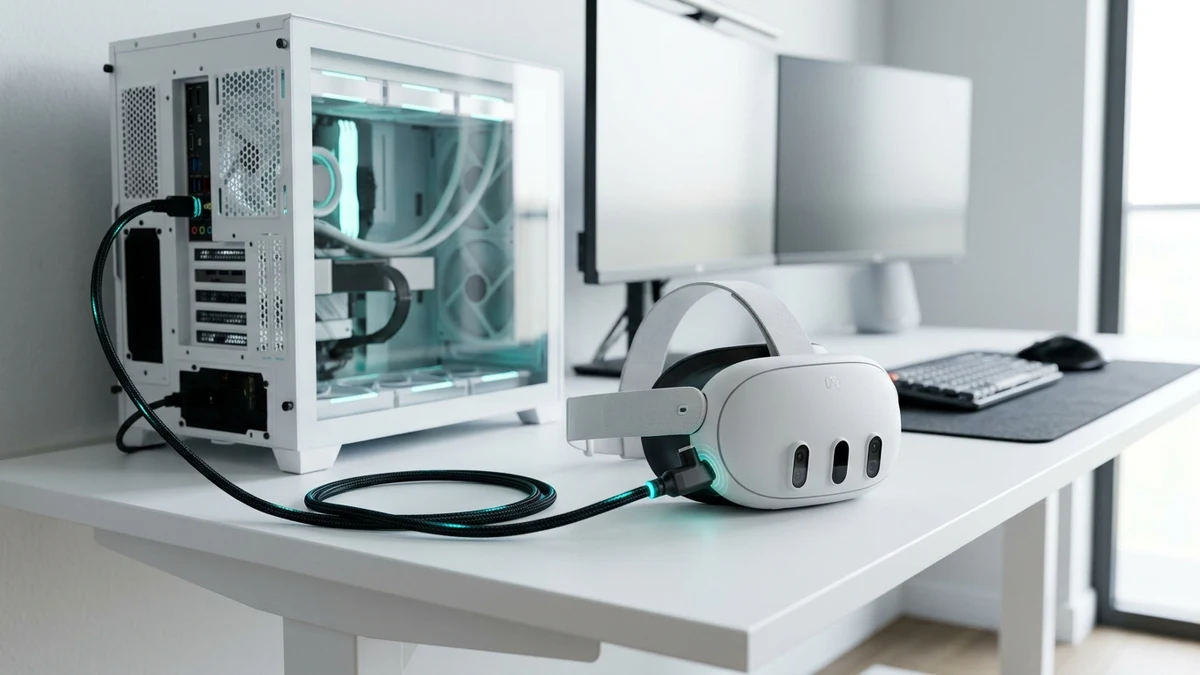
Quest Link vs. Wireless Air Link: What's the Difference?
You can connect your Quest 3 to a gaming PC using a USB cable or wirelessly through Air Link. Both options let you play compatible PCVR games, but they work differently.
With a Quest Link connection, your headset receives a compressed video stream through a USB cable. This can provide a consistent connection without depending on your home Wi-Fi network.
Air Link sends that stream wirelessly. It gives you more freedom to move around, but its performance depends heavily on your router, network congestion, and distance from the access point.
A wired connection isn't completely free from latency, and it isn't automatically better in every situation. However, if your Wi-Fi connection is unreliable, a good USB cable can make your PCVR experience more consistent.
Wired Quest Link
- Immune to Wi-Fi channel interference
- Consistent, low-latency video feed
- Can deliver charging power during play
- Requires quality 5Gbps USB 3.0+ cable
Wireless Air Link
- Total 360° wire-free movement
- Requires dedicated 5GHz/6GHz router
- Subject to network packet drops & latency
- Relies strictly on headset battery
Why Your Meta Quest 3 Link Connection Keeps Failing
There isn't one single reason why Quest Link stops working.
Sometimes the issue comes from the physical connection between your headset and computer. In other cases, the hardware is working properly, but Windows or the Meta Quest Link software is preventing the connection.
The Most Common Causes Include:
- A damaged or incompatible USB cable.
- A USB port that isn't providing a stable connection.
- Outdated Quest Link software or graphics drivers.
- Windows USB power-saving settings.
- Connection problems after a headset update.
- Incorrect settings in the Oculus Debug Tool.
Instead of changing everything at once, it's better to test one possible cause at a time. That way, you'll know what actually fixed the problem.
Start With These Quick Fixes
Before getting into more advanced troubleshooting, try a few basic checks.
Restart Your Headset and Computer
Restart your Quest 3 and your PC. Then reconnect the USB cable and try launching Quest Link again. A restart can clear temporary software problems that interfere with the connection.
Check Both Ends of Your USB Cable
Unplug the cable from your headset and computer, then reconnect it securely. Check whether the connectors feel loose or whether the cable has visible damage. If the connection drops whenever you move your head, the cable or USB port may need closer inspection.
Try Another USB Port
If you're using a desktop computer, try connecting your Link cable directly to a USB port on the back of the PC. These ports are usually connected to the motherboard and can help you rule out problems with front-panel wiring or USB hubs.
Check the Headset Connection Prompt
Put on your headset after connecting the cable and check for any USB-related prompts. Follow the instructions shown in the headset, then launch Quest Link through the appropriate headset interface.
If the connection still fails, continue with the steps below.
Check Your USB Cable and Connection Speed
Not every USB-C cable is suitable for PCVR.
Some USB-C cables are designed mainly for charging and only support USB 2.0 data speeds. They may charge your headset normally but provide a less suitable connection for PCVR.
For wired Quest Link, a good-quality USB 3 cable is generally recommended.
Does Quest 3 Need a USB 3.2 Gen 2 Cable?
No. You don't necessarily need a 10Gbps USB 3.2 Gen 2 cable.
A compatible USB 3 cable supporting 5Gbps can be suitable for Quest Link. Buying a cable with a higher advertised speed doesn't automatically improve your gaming experience.
Cable quality, length, compatibility, and the USB port on your PC all matter.
How to Test Your Link Cable
If your Meta Quest Link PC software offers a USB connection test, use it to check whether the connection is operating at the expected speed.
If the software reports a USB 2.0 connection when you're expecting USB 3, try another compatible port or cable.
Keep in mind that the result may depend on both your cable and your computer's USB controller.
Need a Verified 5Gbps USB-C Cable for Quest 3 PCVR?
Avoid cable speed drops and USB 2.0 throttling with a dedicated high-speed copper VR cable built specifically for Meta Quest 3, 3S, and Quest 2.
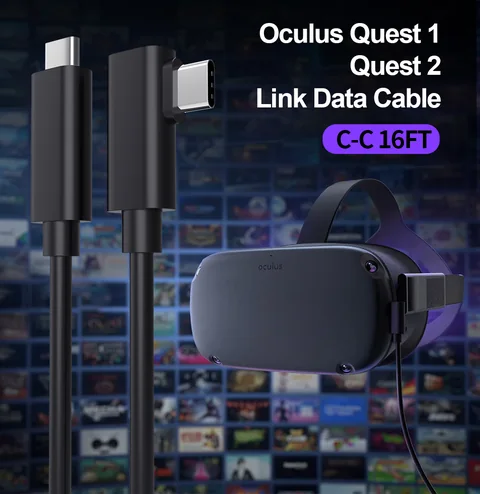
WATCHMYVR 5m USB-C to USB-C VR Link Cable
5Gbps high-speed data throughput with a 90° right-angle headset connector. Delivers stable 2.0–2.5 Gbps Meta Quest test speeds without dropped frames.
Why Your PC's USB Port Matters
You might have several USB ports on your computer, but they don't necessarily provide the same performance.
Some ports support faster data transfer, while others may share bandwidth with additional devices.
If your Quest 3 disconnects frequently, try these steps:
- Connect the headset directly to a motherboard USB port: Rear ports provide the cleanest signaling directly from the chipset controller.
- Avoid using an unpowered USB hub while troubleshooting: Passive hubs divide both bandwidth and electrical power across multiple accessories.
- Disconnect unnecessary USB devices temporarily: Webcams, external drives, and RGB peripherals can congest the USB controller bus.
- Try another USB 3-compatible port: Blue or red ports typically indicate USB 3.0, 3.1, or 3.2 specifications.
- Test with a different cable if one is available: Helps rule out internal wire fraying.
A rear motherboard port is a useful troubleshooting choice, but it isn't guaranteed to perform better than every front-panel port.
Protect Your Quest 3 USB-C Port From Cable Damage
When you're playing PCVR games, the Link cable can pull against the USB-C connector as you move.
Over time, repeated pulling or bending may damage the cable or put stress on the headset's USB port.
Cable Strain Relief Best Practices:
One simple way to reduce that stress is to secure the cable to your head strap using a suitable cable clip or Velcro strap.
Leave enough slack for comfortable head movement, and avoid sharp bends near the connector.
If the cable disconnects whenever you turn your head, stop using it until you've checked the connection. Continuing to use a damaged connector could make the problem worse.
Can Battery Saver Mode Affect Quest Link?
Battery Saver Mode is designed to help your Quest headset use less power.
It can reduce certain performance settings, but that doesn't mean it will automatically disconnect Quest Link.
If you're experiencing unusual performance problems, check whether Battery Saver Mode is enabled. You can try turning it off temporarily to see whether your experience changes.
Also check the headset's battery level. A headset that's running out of power may interrupt your gaming session even if the USB connection itself is working.
Does a Battery Head Strap Help With Quest Link?
Battery head straps can be useful when you want longer standalone VR sessions.
However, it's important to understand how they work with wired Quest Link.
The Quest 3 has a single USB-C port. Most battery straps use that same port to provide power, which means you generally cannot connect a standard wired Link cable and a battery strap to the headset simultaneously.
Some accessories offer alternative connection arrangements, but compatibility should always be checked before buying.
A battery strap also doesn't repair USB connection problems or improve data transfer speeds.
If your main goal is to extend playtime while using wired Quest Link, investigate whether your PC's USB port supplies enough power and whether a compatible powered Link cable is suitable for your setup.
Standalone & Wireless PCVR Power
Prefer playing PCVR wirelessly via Steam Link or Air Link? A dedicated hot-swappable battery head strap gives you 4 to 6 hours of continuous playtime while balancing the headset's front weight.
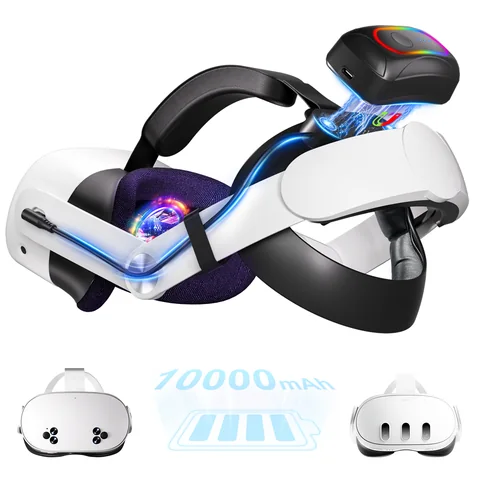
WATCHMYVR 10,000mAh Magnetic Battery Strap
Halo-style comfort head strap with hot-swappable magnetic power pack. Extends standalone play by 4-6 hours with zero facial pressure.
Update Your Meta Quest Link PC Software
Outdated or damaged PC software can sometimes prevent Quest Link from working correctly.
Open the Meta Quest Link application on your computer and check for available updates.
If the software is already updated but the connection still fails, restart the application and your computer.
If necessary, use Meta's official repair or installation process to address possible software problems.
Avoid deleting application folders manually unless you're following reliable instructions for your specific software version.
Check for Quest 3 Headset Updates
Your headset software also needs to be kept up to date.
To check for updates:
- Put on your Quest 3.
- Open the headset settings.
- Find the software update section.
- Install any available updates.
- Restart the headset if prompted.
Make sure your headset has enough battery power and a stable internet connection before updating.
Software updates can fix compatibility problems, although installing the latest version doesn't guarantee that every Quest Link issue will disappear.
Update Your Graphics Card Drivers
Quest Link depends on your PC's graphics hardware to encode and stream video to your headset.
If your graphics driver is outdated or malfunctioning, you might experience black screens, stuttering, or connection problems.
Visit the official website of your GPU manufacturer, such as NVIDIA, AMD, or Intel, to check for an appropriate driver.
If your problems started immediately after a driver update, check whether other users have reported similar issues.
In some cases, returning to a previously stable driver may help. Use the manufacturer's recommended rollback procedure rather than downloading drivers from unknown websites.
Change Windows USB Power-Saving Settings
Windows includes power-saving features that can suspend USB devices when they're not actively being used.
These settings are useful for reducing power consumption, but they can occasionally interfere with USB connections.
How to Disable USB Selective Suspend
On Windows systems that provide this option:
- Open Control Panel.
- Go to Power Options.
- Select Change plan settings for your active power plan.
- Click Change advanced power settings.
- Expand USB settings.
- Find USB selective suspend setting.
- Change it to Disabled for testing.
- Apply the changes and restart your computer.
Not every Windows computer displays this setting, particularly some newer systems.
If disabling the setting doesn't help, consider restoring the original configuration.
Fix Quest 3 Not Recognized in Windows Device Manager
If your computer doesn't recognize your Quest 3, Windows Device Manager may help identify the problem.
Check for Device Errors
- Right-click the Windows Start button.
- Open Device Manager.
- Connect your Quest 3 using the Link cable.
- Look for devices showing a yellow warning symbol.
- Check the device properties for an error message.
A warning symbol may indicate a driver or hardware communication problem.
Before uninstalling anything, make sure you've identified the correct device.
If appropriate, disconnect the headset, restart Windows, and reconnect it.
More advanced driver changes should follow official troubleshooting guidance, since removing the wrong driver could affect other devices.
Should You Change BIOS Settings to Fix Quest Link?
Some advanced USB problems may be related to motherboard firmware or controller settings.
However, changing BIOS or UEFI settings shouldn't be your first troubleshooting step.
If you've already tested multiple cables and ports, check your motherboard manufacturer's support documentation for known USB compatibility problems or firmware updates.
For most users, checking the cable, USB ports, Windows settings, and PC software is a better starting point.
Using the Oculus Debug Tool to Fix PCVR Performance
The Oculus Debug Tool is an advanced utility included with Meta's PCVR software.
It allows users to adjust certain rendering and encoding settings.
These settings can be useful when troubleshooting visual quality or performance problems, but they won't fix a physically damaged cable or faulty USB port.
Check Your Encode Bitrate
If you've previously changed the Encode Bitrate setting, consider returning it to its default or automatic configuration while troubleshooting.
Very high manual bitrate settings can create performance problems depending on your GPU, connection, and software configuration.
There isn't one ideal bitrate that works for every Quest 3 and gaming PC.
Start with stable default settings before experimenting with more advanced adjustments.
What to Do When Quest Link Shows a Black Screen
A black screen doesn't always mean your cable is broken.
The problem could involve the graphics driver, Quest Link software, or an application that's failing to launch properly.
Try the following:
- Close the PCVR game and Quest Link application.
- Restart your headset and computer.
- Reconnect the USB cable.
- Check for graphics driver updates.
- Return any custom Debug Tool settings to their defaults.
- Try launching Quest Link without opening a game.
If the Quest Link interface works but a particular game displays a black screen, the issue may be specific to that game rather than the USB connection.
When Should You Replace Your Quest Link Cable?
Replacing your cable makes sense when testing suggests the cable itself is the problem.
For example, you may need a replacement if:
- The cable has visible physical damage.
- The connection drops when the cable moves.
- The same USB port works correctly with another compatible cable.
- Your cable only supports USB 2.0 and you want a USB 3 connection.
- The connectors no longer fit securely.
Before buying a replacement, check the cable's data-transfer specifications, length, connector type, and compatibility with your PC.
For users who prefer a longer wired setup, WatchMyVR offers 5-meter USB-A-to-C and USB-C-to-C PCVR cable options. Choose the connector type that matches your computer and verify the specifications for your particular setup.
WatchMyVR 5m USB-A to USB-C Link & Charge Cable
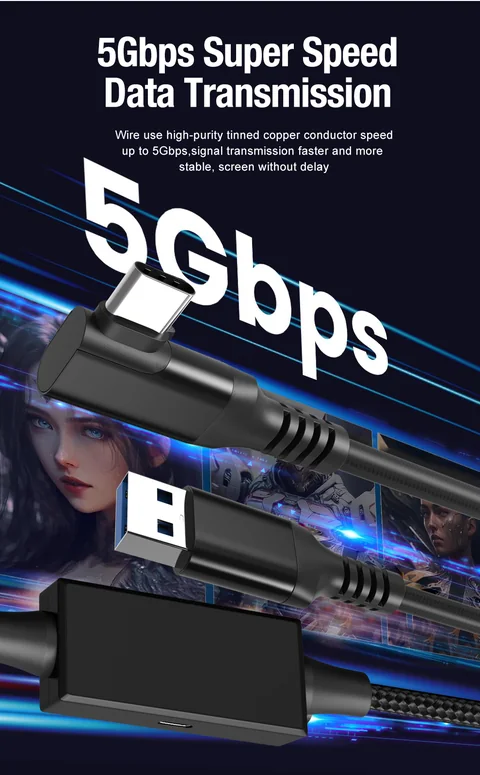
Model CA205. Connects to standard PC USB-A ports while offering charging support and 5Gbps high-speed data transfer for Quest 3, 3S & 2.
WatchMyVR 5m USB-C to USB-C VR Link Cable
Model CC05. 16FT / 5M USB 3.2 Gen 1 (5Gbps) with 90° right-angle headset connector for PCs with native USB-C ports.
Advanced Troubleshooting With Meta Quest Developer Hub
If you've tried the usual fixes and Quest Link still isn't working, more detailed diagnostic information may help.
Meta Quest Developer Hub provides tools that developers can use to inspect headset behavior and collect logs.
These tools are generally more useful for advanced users than for someone dealing with a simple cable issue.
If you're comfortable working with diagnostic logs, you can look for relevant connection errors and use them when asking for technical support.
Otherwise, it's usually easier to contact Meta Support and explain which troubleshooting steps you've already tried.
Where to Find More Help
Sometimes Quest Link problems are caused by a software bug or a specific combination of PC hardware and drivers.
If you haven't found a solution, try searching the official Meta support resources and developer forums.
Include details such as your headset model, Windows version, graphics card, USB connection type, and any error messages.
This information can make it easier for other users or support staff to identify the problem.
Frequently Asked Questions
Final Thoughts
When your Meta Quest 3 refuses to connect to your PC, it's easy to assume something expensive has gone wrong. But many Quest Link problems come down to a cable, USB port, software setting, or driver that needs attention.
Start with the simple checks before moving on to advanced settings. Test one thing at a time, and don't replace your equipment until you have a good reason to believe it's causing the problem.
A reliable PCVR setup doesn't have to be complicated. With the right connection, updated software, and a little troubleshooting, you can get back to enjoying your VR games without constantly dealing with disconnections.